Last updated: July 2026
🏆 Editor’s Top Pick
8BitDo M30 Bluetooth Gamepad
Best for: Excellent D-Pad for fighting games
Playing Mortal Kombat (1992) today, for many, is about more than just nostalgia. It is about recapturing a slice of gaming history, experiencing the raw, unfiltered violence that sparked parliamentary debates, and nailing those iconic fatalities. Most guides for the original arcade classic focus on mastering character special moves and fatalities on original cabinets or console ports, which is a worthy pursuit. Yet, for those of us wanting to experience the game on modern systems, there is a distinct technical challenge often overlooked by such coverage.
Official re-releases, such as the Mortal Kombat Kollection for PC, frequently introduce their own set of compatibility hurdles, often frustrating players seeking a straightforward experience. The simple reality is that for a truly trouble-free and accessible experience of Mortal Kombat (1992) on modern systems, dedicated emulation often proves superior to these official compilations.
This guide aims to cut through the confusion, providing a clear path to playing Mortal Kombat (1992) with authenticity and stability in 2026. We will walk through the best emulation options, specific hardware requirements, and offer essential tips to avoid the common issues that plague modern re-releases, particularly the persistent problems reported by users of the Mortal Kombat Kollection on PC. Understanding these technicalities ensures that the only struggle you face is against your opponent, not your system.
The Enduring Appeal of Mortal Kombat (1992) in 2026
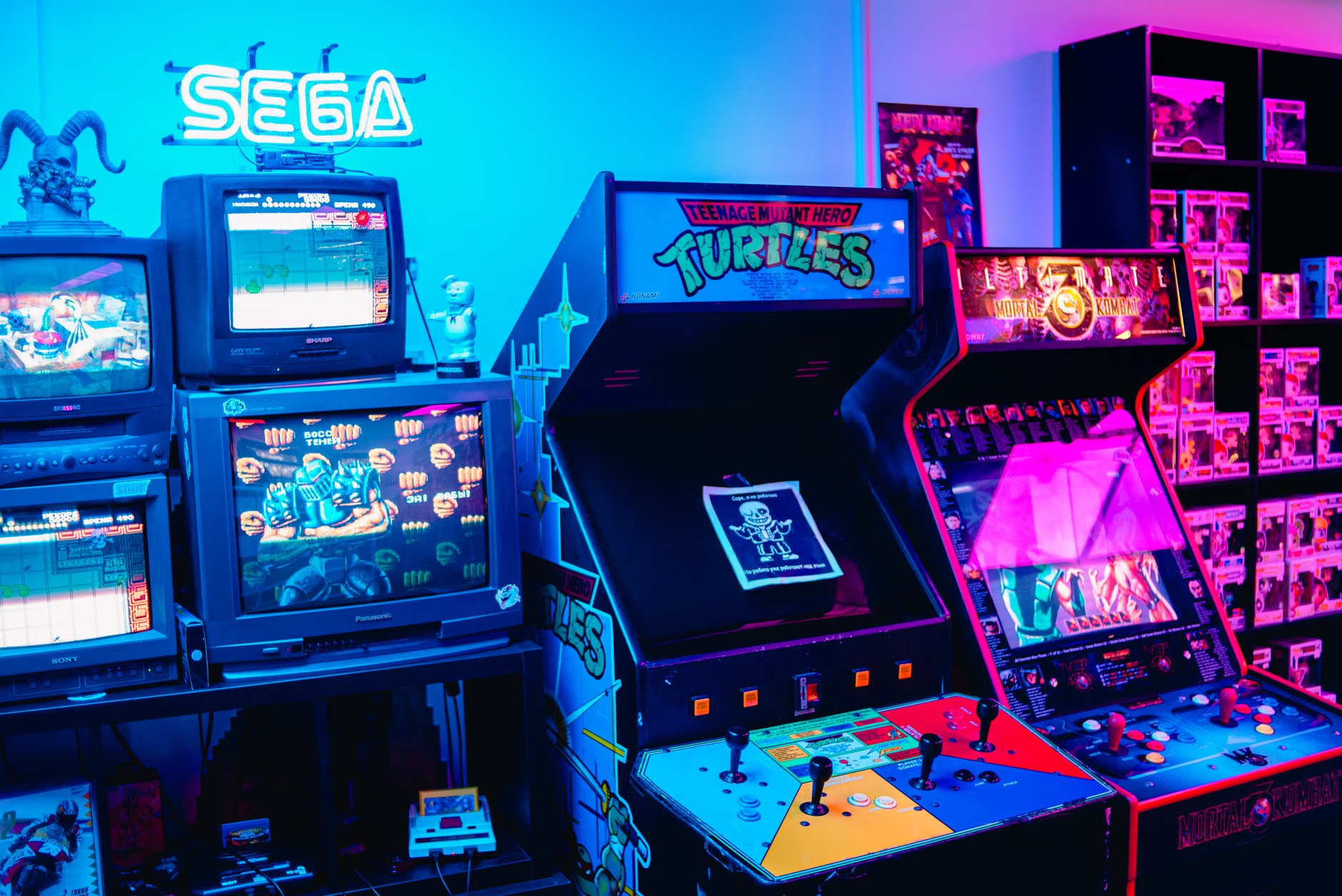
The original Mortal Kombat, released in arcades in 1992, remains a significant landmark in gaming history. Its arrival dramatically shifted the conversation around video game violence, introducing a level of visceral combat and explicit fatalities that ignited moral panics and eventually led to the creation of the ESRB rating system in the United States. Beyond the controversy, Mortal Kombat captured players’ imaginations with its digitised sprites, unique aesthetic, and a combat system that felt distinct from its contemporaries, such as Street Fighter II. While Street Fighter II focused on intricate combos and precision inputs, Mortal Kombat offered a simpler, more accessible special move execution, paired with the allure of secret characters and gruesome finishing moves.
The game’s arcade dominance throughout the early 1990s was undeniable. Players lined up to witness Sub-Zero’s spine rip or Scorpion’s Toasty! moment. This allure translated strongly to home consoles, with the Sega Genesis and Super Nintendo Entertainment System (SNES) ports being the most popular, albeit with significant differences. The Genesis version famously retained the blood and uncensored fatalities via a “Blood Code” (ABACABB), a move that proved hugely popular with players and contributed to its commercial success. By contrast, the SNES version, under Nintendo’s family-friendly policy, replaced blood with “sweat” and censored fatalities, much to the chagrin of many players, though it still sold well on the strength of its overall graphics and sound fidelity. Even today, the debate over which port offered the “best” experience sparks discussions amongst enthusiasts.
Today, the enduring appeal of Mortal Kombat lies not just in its historical significance but also in its simple, brutal fun. The character designs, the unique sound effects, and the satisfying crunch of a well-timed uppercut still resonate. For many, replaying Mortal Kombat is a quest to revisit those initial thrills, to perfect old combos, and to relive the era when a simple game could cause a global sensation. The technical challenge now, a generation removed from its original launch, is making sure these memories can be accurately and reliably revisited on the sophisticated but often finicky hardware of 2026. This means moving beyond relying on often-flawed official modern ports, and instead embracing dedicated emulation for a consistent, pixel-perfect experience.
Why Official PC Re-releases Disappoint for Mortal Kombat (1992) Players
Despite its classic status, modern official re-releases of Mortal Kombat (1992) for PC often present more headaches than nostalgic pleasure. The primary culprit in 2026 remains the Mortal Kombat Kollection, which bundles the original game with Mortal Kombat 2 and Ultimate Mortal Kombat 3. While the convenience of having these titles together on a modern platform might seem appealing, community reports consistently highlight significant technical issues that make it a frustrating proposition for many users.
The most commonly reported problem for the Mortal Kombat Kollection stems from its reliance on deprecated Microsoft services. Users frequently report installation and launch issues, with the game failing to start or crashing back to the desktop. The root cause is often conflicts with “Microsoft Games for Windows – LIVE Redistributable” and “Microsoft Games for Windows Marketplace.” Even in 2025-2026, many users still report these issues, necessitating manual uninstallation of these legacy components, a process that is far from straightforward for the average user. This requirement alone is a barrier, demanding a specific series of steps to even get the game to attempt to run.
Beyond the launch problems, the Mortal Kombat Kollection imposes significant technical limitations that compromise the experience. The game is locked to a 1280×720 resolution, with absolutely no in-game graphics options available to adjust it. For players accustomed to modern PC gaming, this lack of flexibility is a major drawback, forcing a stretched or windowed presentation on higher-resolution displays. The frame rate is locked at 54 FPS. While this is certainly playable, it does not match the original arcade’s 60 FPS, introducing a subtle but noticeable choppiness for those sensitive to frame pacing. This departure from the original arcade experience, coupled with the inability to adjust graphical fidelity, makes the official release a poorer choice for purists.
The online play, a feature that might have initially justified the Kollection‘s existence, is also no longer supported. While the game may still allow searching for matches, it will not connect to any servers, rendering this aspect entirely defunct. This means anyone hoping to recreate those arcade competitive moments against friends online will be disappointed. All these factors combined mean the Mortal Kombat Kollection, despite its official status, delivers a compromised and often unstable experience for those wanting to revisit the original Mortal Kombat on their PC in 2026. This persistent array of technical faults is precisely why a dedicated emulation approach offers a more reliable and enjoyable alternative for UK retro enthusiasts.
Essential Hardware for Emulating Mortal Kombat (1992) on PC
To successfully emulate Mortal Kombat (1992), you will not need a particularly powerful PC by modern standards. The original arcade game and its 16-bit console ports demand very little computational horsepower, making them accessible to a wide range of systems. However, specific hardware considerations can significantly enhance your experience, especially when aiming for authenticity and reliable performance.
Recommended PC Specifications for Emulation
For emulating Mortal Kombat (1992) via MAME or console cores, any PC from the last decade will likely suffice. A dual-core processor (Intel i3 equivalent or higher from around 2010 onwards) with at least 4GB of RAM is generally more than enough. Integrated graphics, such as Intel HD Graphics, will handle the game’s visuals without issue. The primary concern is stability rather than raw power. You are not pushing a modern 3D engine; you are replicating the relatively simple 2D graphics of the early 90s. The challenge typically lies in correctly configuring the software, not in overwhelming your hardware. For those running a retro handheld, the requirements are even lower, as we’ll discuss later.
Controller Choices for Authentic Arcade Feel
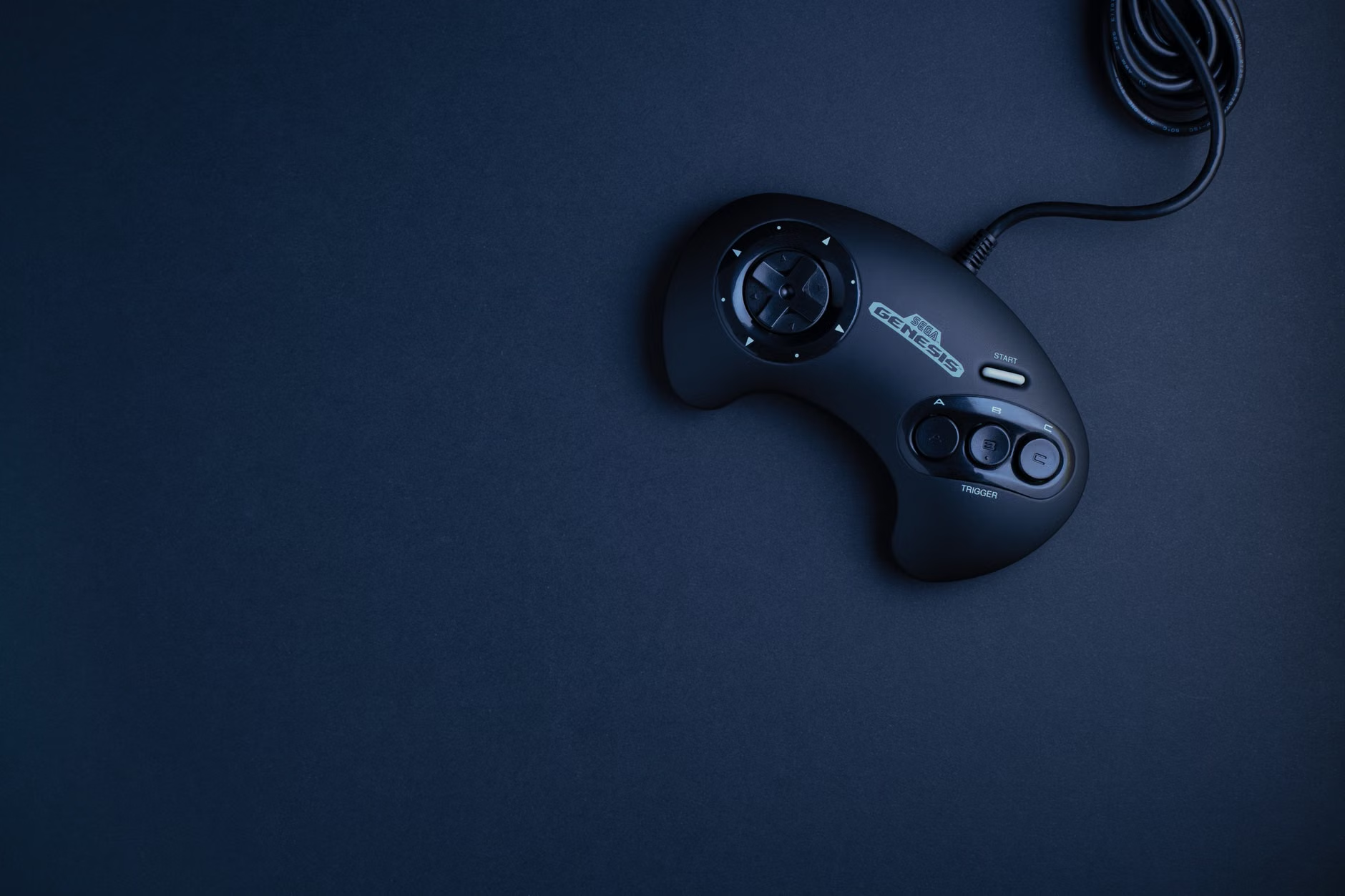
A good controller is paramount for fighting games, and Mortal Kombat is no exception. While a keyboard can work, it detracts from the arcade feel. For optimal performance and comfort, particularly for its unique control scheme which often uses five action buttons (High Punch, Low Punch, High Kick, Low Kick, Block), a dedicated gamepad is essential. The 8BitDo M30 Bluetooth Gamepad, priced around £30-£35 in the UK, is widely regarded as an excellent choice for 6-button fighters. Its D-pad is precise and responsive, making special move inputs consistent. The M30’s six face buttons are laid out in a way that closely mimics the Sega Genesis controller, which was a strong platform for Mortal Kombat in its original release. This ergonomic design is far superior to standard Xbox or PlayStation controllers for 2D fighting games, where the D-pad is often an afterthought.
Alternative options include the 8BitDo Arcade Stick (around £90-£100) for a true arcade experience, or even a wired USB SNES replica controller if you prefer the 4-button layout for the Super Nintendo version. The key is to select a controller with a D-pad that provides good tactile feedback and allows for clean diagonal inputs, which are critical for many Mortal Kombat special moves. Avoiding cheap, unresponsive D-pads will save you considerable frustration, particularly when attempting more complex character fatalities.
Storage Considerations for Emulation Files
While Mortal Kombat (1992) ROMs are small, efficient storage is beneficial for overall emulation performance and organisation. For PC emulation, an SSD (Solid State Drive) is always preferable for your operating system and emulator installation, as it speeds up load times and general system responsiveness. For your ROMs folder, a dedicated drive or partition is sensible. If using a retro handheld, a fast MicroSD card is essential. Brands like SanDisk Extreme Pro MicroSD Card (around £15-£25 for 64GB) offer excellent read/write speeds, which minimise any stutter when loading game assets or save states. Whilst cheaper cards might function, community reports indicate they can lead to data corruption over time or slower menu navigation on handhelds, problems easily avoided by investing in a quality card from a reputable manufacturer.
Choosing Your Emulator and Core for Mortal Kombat (1992)
The world of emulation offers several excellent avenues for playing Mortal Kombat (1992), each catering to different preferences for accuracy, console version, and ease of setup. Understanding these options is key to achieving your desired experience, whether you seek the arcade original or a specific home port.
Arcade (MAME) Emulation: The Purest Form
For the unadulterated arcade experience, MAME (Multiple Arcade Machine Emulator) is the definitive choice. MAME aims for perfect replication of arcade hardware, ensuring the game runs exactly as it did in 1992, down to the frame timings and graphical quirks. Setting up MAME can be slightly more involved than console emulation, primarily due to the specific ROM set requirements. MAME ROMs are often part of a “full set” that corresponds to a particular MAME version (e.g., MAME 0.260). Using a ROM from an older or newer set with a different MAME version can lead to the game not launching, showing graphical glitches, or crashing. Players will need to ensure their Mortal Kombat (1992) ROM is compatible with their chosen MAME executable.
Within RetroArch, the MAME (current) core is generally the most up-to-date and accurate option. Other MAME variants or FinalBurn Neo (FBNeo) cores are also available, which can be easier to set up or run more efficiently on lower-end hardware, though often with a slight trade-off in accuracy compared to the main MAME core. For anyone prioritising arcade fidelity above all else, sourcing a compatible MAME ROM and configuring the corresponding core correctly is the path to pursue.
Console Emulation: Versatility and Accessibility
Emulating the console versions of Mortal Kombat (1992) offers greater versatility and can sometimes be simpler to set up, especially through RetroArch. The two most popular ports, SNES and Sega Genesis (Mega Drive in the UK), each have their dedicated and highly accurate emulator cores:
- SNES Emulation: For the Super Nintendo version, cores like bsnes (accuracy) or snes9x (performance) are excellent choices. bsnes aims for cycle-accurate emulation, providing an experience as close to original hardware as possible. Snes9x offers a slight performance boost, often beneficial on less powerful systems. The SNES version is remembered for its graphical fidelity but also its controversial “sweat” censorship.
- Sega Genesis/Mega Drive Emulation: The Genesis port can be emulated using cores such as Genesis Plus GX or PicoDrive. Genesis Plus GX is highly accurate, recreating the distinct sound and visual characteristics of the console. PicoDrive is a lighter core, suitable for older PCs or budget retro handhelds. The Genesis version is favoured by many for retaining the original blood and uncensored fatalities with the famous ABACABB code.
- Sega CD Emulation: This version is often cited as a strong contender due to its enhanced audio, CD-quality soundtrack, and full-motion video (FMV) cutscenes. Emulating the Sega CD requires specific BIOS files in addition to the game ROMs (usually in BIN/CUE format). Cores like Genesis Plus GX or PicoDrive can also handle Sega CD titles. The FMV intros, whilst grainy by modern standards, added a cinematic flair that was impressive in 1993, and many consider the overall presentation and sound to be superior to the cartridge versions.
The choice between arcade and console emulation, or even which console port, depends on your preference. For those seeking the purest fight mechanics, the arcade MAME version is king. For a faithful home experience with regional variations, the Genesis and SNES ports offer distinct flavours. The Sega CD version, requiring Sega CD BIOS files, blends better audio with those early FMV sequences. Each offers a nuanced way to experience Mortal Kombat (1992).
For a detailed breakdown of emulator configurations and how to get them running, our dedicated Setup & Emulation Hub offers extensive resources.
Step-by-Step: Setting Up RetroArch for Mortal Kombat (1992)
RetroArch serves as a powerful frontend for various emulator cores, making it an ideal choice for setting up and playing Mortal Kombat (1992) from multiple platforms (arcade, SNES, Genesis, Sega CD) within a single, unified interface. This detailed guide assumes you’re setting up on a Windows PC, but the principles generally apply to other RetroArch-supported platforms, including Linux and many retro handheld devices.
Requirements List:
- RetroArch Installer: Download the latest stable 64-bit installer from the official RetroArch website (as of 2026, RetroArch 1.19 nightly builds offer the most up-to-date features and bug fixes).
- Game ROMs: For Mortal Kombat (1992) from your preferred system (MAME.zip, SNES.sfc, Genesis.md, Sega CD.bin/.cue). Please note the importance of legally acquiring ROMs.
- BIOS Files (if needed): Essential for Sega CD emulation (e.g.,
bios_CD_U.bin,bios_CD_E.bin,bios_CD_J.bin). These must be correctly named and placed. - Retro Gaming Controller: A gamepad like the 8BitDo M30 Bluetooth Gamepad for the best experience.
Known Issues on Older Firmware:
If you’re using an older RetroArch installation or a system that hasn’t updated in a while, ensure you update all core info files and assets. Older versions might have outdated core references or struggle with newer ROM formats, particularly for MAME. The V1.17 update, for example, introduced significant stability improvements for many arcade cores, so anything prior to that could cause unexpected crashes.
Step 1: Download and Install RetroArch
- Go to the official RetroArch website and download the appropriate installer for your operating system (e.g., “Windows 64-bit Installer”).
- Run the installer. During installation, choose a directory that is easily accessible and not within system-protected folders (e.g.,
C:\RetroArchinstead ofC:\Program Files\RetroArch). This avoids potential permission issues when saving configurations or core updates. - After installation, launch RetroArch. You’ll be greeted by its XMB-style interface.
Step 2: Update Cores and Assets
- From the main menu, navigate to Online Updater.
- Select Update Core Info Files. This ensures RetroArch has the latest information about available cores.
- Select Update Assets, Update Joypad Profiles, and Update Databases. These steps ensure your interface looks correct, controllers are recognised, and games can be scanned.
- Now, select Core Downloader. Scroll down and find the relevant cores for Mortal Kombat:
- For Arcade: Look for MAME (MAME) or Arcade (FBNeo).
- For SNES: Look for Nintendo – SNES / SFC (bsnes-hd Beta) or Nintendo – SNES / SFC (Snes9x).
- For Genesis/Sega CD: Look for Sega – MS/GG/MD/CD (Genesis Plus GX) or Sega – MS/GG/MD/CD (PicoDrive).
Step 3: Acquire and Place ROMs & BIOS Files
- Create a dedicated folder for your ROMs, such as
C:\RetroArch\ROMs\Mortal_Kombat. It’s crucial to keep your ROMs organised. - Place your Mortal Kombat (1992) ROMs into this folder. Arcade ROMs typically remain in their.zip format. Console ROMs may be.sfc,.md, or.bin/.cue (for Sega CD).
- For Sega CD: Create a
systemfolder within your RetroArch installation directory (e.g.,C:\RetroArch\system). Place your correctly named Sega CD BIOS files (e.g.,bios_CD_U.binfor NTSC-U,bios_CD_E.binfor PAL) directly into thissystemfolder. Incorrectly named or missing BIOS files are the most common cause of Sega CD games failing to launch.
Step 4: Scan Directories for Games
- Return to the main RetroArch menu.
- Navigate to Import Content > Scan Directory.
- Browse to your
Mortal_KombatROMs folder (e.g.,C:\RetroArch\ROMs\Mortal_Kombat) and select Scan This Directory. - RetroArch will scan your ROMs and, if configured correctly, create new playlists on your main menu for each console system found. For MAME, you may need to load content manually if the scanner struggles with the specific ROM set.
Step 5: Configure Your Controller
RetroArch usually auto-detects common controllers. However, manual mapping can ensure optimal input for Mortal Kombat.
- Connect your 8BitDo M30 Bluetooth Gamepad or other controller.
- From the main RetroArch menu, go to Settings > Input > Port 1 Controls.
- Select Device Index to ensure your controller is chosen.
- Select Bind All and follow the on-screen prompts to map each button. Pay close attention to mapping the D-pad and the six face buttons for accurate Mortal Kombat inputs.
- After binding, go back to the main Input menu and select Hotkeys to set up useful functions like “Menu Toggle” (to easily access RetroArch’s quick menu mid-game) and “Save State” / “Load State”. For example, setting Menu Toggle to L3+R3 (clicking both analogue sticks) or a dedicated ‘Home’ button is common.
Step 6: Optimise Video Settings
Achieving an authentic visual presentation for Mortal Kombat (1992) is crucial.
- Launch any Mortal Kombat game (we’ll cover launching in Step 7, but you need a game running to access core-specific video options).
- Press your “Menu Toggle” hotkey to bring up the RetroArch Quick Menu.
- Go to Settings > Video > Scaling.
- Set Aspect Ratio to Core Provided for the most accurate display. For MAME, this will typically be 4:3. For Genesis and SNES, it will be 4:3 or close to it.
- Toggle Integer Scale to On. This ensures pixels are drawn in perfect multiples, preventing shimmering or blurry visuals and maintaining sharp pixel art. This is crucial for games of this era.
- For a retro CRT effect, go to Shaders > Load Shader Preset. Browse to the
crtfolder and try presets likecrt/crt-geomorcrt/crt-pi. These add scanlines and curvature that replicate an old arcade monitor.
- Return to the Quick Menu, select Overrides > Save Core Overrides to apply these settings specifically to the core you’re using (e.g., MAME or Genesis Plus GX).
Step 7: Launch and Play Mortal Kombat (1992)
With everything configured, launching your game is straightforward.
- From the main RetroArch menu, navigate to the playlist for your chosen system (e.g., “Arcade”, “Sega Genesis”, “Nintendo SNES”).
- Select Mortal Kombat (1992) from the list.
- Choose Run, then select the core you wish to use (e.g., MAME (MAME), Genesis Plus GX).
- The game should now launch. If you encounter issues, proceed to the Troubleshooting section.
- Once in-game, you can re-enter the Quick Menu (via your hotkey) to adjust further settings like input latency (found under Latency) or specific core options (Options). For Mortal Kombat, reducing input latency can dramatically improve the responsiveness of special moves.
Following these steps should get you up and running with Mortal Kombat (1992) through RetroArch, providing a far more stable and customisable experience than official PC ports.
Troubleshooting Common Emulation Issues for Mortal Kombat (1992)
Even with careful setup, emulation can throw up a few common hurdles. Addressing these quickly ensures your Mortal Kombat sessions remain focused on flawless victories, not frustrating technical problems. These are the issues most commonly reported by the community when attempting to get older titles running correctly.
Missing BIOS Files
Problem: Sega CD games (and some other systems) fail to launch, displaying an error message about missing BIOS files, or simply returning to the RetroArch menu without explanation. This is a very common issue, frequently seen on forums like r/RetroArch.
Solution: The core problem here is often incorrectly named or misplaced BIOS files. Ensure your BIOS files are in the exact system directory within your RetroArch installation (e.g., C:\RetroArch\system). For Sega CD, you will typically need three files: bios_CD_U.bin (USA), bios_CD_E.bin (Europe), and bios_CD_J.bin (Japan). Verify their filenames precisely, as even a single typo will prevent them from being recognised. RetroArch’s information tab (accessible by highlighting a game in a playlist and selecting ‘Information’) can sometimes list required BIOS files and their expected hashes, which is a powerful diagnostic tool.
Controller Not Responding
Problem: Your gamepad is connected, but inputs are not registering in the game, or some buttons are incorrectly mapped. This often happens after a RetroArch update or when using a new controller.
Solution: First, check that your controller is properly detected by your operating system. Then, within RetroArch, go to Settings > Input > Port 1 Controls. Ensure the Device Index correctly points to your physical controller (e.g., “8BitDo M30 Gamepad”). If it is set to “None” or an incorrect device, reselect it. If inputs still fail, try re-binding all controls using the Bind All option. For less common controllers, ensure you have updated your Joypad Profiles via the Online Updater, as this downloads community-contributed mappings. If using a custom firmware on a handheld, some operating systems like OnionOS or GarlicOS have their own controller mapping utilities that override RetroArch’s, so check those first.
Performance Problems: Frame Rate Drops or Audio Crackling
Problem: Mortal Kombat (1992) should run at a steady frame rate (60 FPS for arcade, 30-60 FPS for console versions), but you are experiencing slowdown, stuttering, or distorted audio. This is generally rare for this generation of games unless using a very low-end system or incorrect settings.
Solution: First, ensure your PC meets the minimal specifications outlined earlier. Within RetroArch’s Quick Menu (mid-game), go to Options for the specific core you are using. Some cores have accuracy settings that can be lowered for a performance boost (e.g., ‘Accuracy Level’ for bsnes). For MAME, try a different MAME core like FBNeo if the main MAME core is too demanding. Enable Threaded Video in Settings > Video, as this offloads some video processing and can help. Adjusting audio latency in Settings > Audio (e.g., reducing “Audio Latency” from 64ms to 32ms) might resolve crackling, but monitor performance for stuttering. Finally, ensure your RetroArch’s Video > Sync > VSync is set to On, as disabling it can cause screen tearing, whilst enabling it ensures smooth frame delivery, assuming your system can sustain the frame rate. For handhelds, ensure your device’s performance mode is active, as some models like the Anbernic RG35XX H have an “optimised” mode that offers a slight performance increase over power-saving settings.
Visual Glitches: Incorrect Aspect Ratio or Scaling Artefacts
Problem: The game appears stretched, squashed, or has shimmering lines and blurry pixels, deviating from the sharp pixel art of the original. This often indicates incorrect video scaling settings.
Solution: The most common fix is to revisit Settings > Video > Scaling in the RetroArch Quick Menu. Ensure Aspect Ratio is set to Core Provided or 4:3. Critically, turn Integer Scale to On. This forces the emulator to draw pixels at perfect integer multiples, eliminating interpolation artefacts. If the game still looks odd, try applying a suitable CRT shader from Shaders > Load Shader Preset, which can often mask minor scaling imperfections by introducing scanlines and a slight curvature that would have been present on original monitors. For arcade games, the original displays were typically 4:3, so ensure your screen settings reflect this. If playing on a wider screen handheld like a Retroid Pocket 4 Pro, you’ll inevitably have black bars at the sides, which is the correct way to display a 4:3 game.
Save State Corruptions
Problem: You load a save state, and the game crashes, freezes, or exhibits severe glitches. This can be frustrating, especially after a long play session.
Solution: Save states are generally reliable but can sometimes become corrupted, especially if you change emulator cores, update RetroArch, or load states created on vastly different hardware or firmware. The best practice is to use save states frequently but also rely on the game’s internal save system (if it has one, though Mortal Kombat (1992) typically does not for progress, only high scores) whenever possible. If a save state causes a problem, try loading an older save state if you have multiple. If you frequently switch between cores for the same game, try to stick to one core for all save states to maintain compatibility. The community advises against relying solely on save states for long-term progress, especially for arcade games where the intention was always to play in single sittings or use continues.
Mortal Kombat (1992) on Retro Handhelds in 2026: Portable Bloodsport
The allure of taking Mortal Kombat (1992) on the go is strong, and in 2026, the market for retro handhelds offers plenty of capable devices. These portable machines provide a dedicated platform for emulation, often delivering a more focused experience than a general-purpose PC. The key is choosing a device that balances screen quality, control comfort, and processing power for your chosen version of Mortal Kombat.
Suitable Handhelds for 16-bit and Arcade Emulation
For the 16-bit console versions (SNES, Genesis) of Mortal Kombat (1992), even budget-friendly handhelds perform admirably. Devices like the Anbernic RG35XX H (around £75-£95 UK) or the Miyoo Mini Plus (around £50-£60 UK) are excellent choices. They feature 3.5-inch IPS panels, typically around 640×480 resolution, which is pixel-perfect for most 16-bit titles, avoiding any scaling artefacts. Their D-pads are generally quite good for fighting games, though the smaller form factor might not suit all hand sizes for extended sessions. The underlying chipsets in these devices, such as the Allwinner H700 or Rockchip RK3566, handle Genesis Plus GX or Snes9x cores with frame rates holding a locked 60fps without issue.
For the full arcade (MAME) version, slightly more powerful devices might offer a smoother experience, particularly with the more demanding MAME (current) cores. Handhelds in the £100-£150 range, such as the Retroid Pocket 2S or Anbernic RG405M, provide more headroom. These devices often feature higher-resolution screens and more robust processors, ensuring that even the most demanding arcade cores maintain a consistent 60 frames per second. The larger form factor of some of these devices also contributes to more comfortable play during competitive fighting game sessions, offering better grip and button spacing.
Screen Ratios and Authenticity
Most retro handhelds feature a 4:3 aspect ratio screen, which is ideal for Mortal Kombat (1992) as both the arcade original and its 16-bit console ports were designed for this aspect. This means the game fills the screen without stretching or unsightly black bars, maintaining visual authenticity. Devices with widescreen displays, such as the Retroid Pocket 4 Pro, will display 4:3 content with black bars on the sides, which is the correct method for maintaining the original aspect ratio. While some players might find this less visually appealing, it is the only way to avoid distorting the pixel art. Screen uniformity matters more than outright resolution for pixel art games; a consistent backlight and colour profile will contribute more to authenticity than higher pixel density.
Operating Systems and Firmware
The operating system on your chosen handheld plays a significant role in the emulation experience. Custom firmware like OnionOS (for Miyoo Mini Plus) or GarlicOS (for Anbernic RG35XX models) often provide superior RetroArch integration, streamlined interfaces, and optimised performance profiles compared to stock firmware. These custom firmwares are developed by the community, often addressing issues and adding features faster than manufacturers can. For example, OnionOS 4.2.4 introduced specific optimisations for various cores, ensuring smoother transitions and resource management. For battery life on these devices, Anbernic’s published battery figures are commonly reported to be 15–20% higher than real-world results under emulation load, meaning a device rated for 5 hours might only deliver 4-4.5 hours when pushing cores with consistent 60fps action. Managing expectations here is important, and always check community consensus on platforms like r/SBCGaming for realistic battery performance figures.
Pro Tips for an Authentic Mortal Kombat (1992) Experience
Beyond simply getting Mortal Kombat (1992) running, several advanced techniques and community insights can improve the emulation experience from functional to genuinely authentic. These tips are drawn from years of community discussion and technical analysis, aiming to replicate the precise feel and look of the game as it was originally intended.
Input Latency Optimisation
For fighting games, input latency is paramount. Even a few milliseconds of delay can throw off special move timings and make competitive play frustrating. RetroArch offers several powerful tools to combat this:
- Run-Ahead: This feature predicts the next frame and processes it ahead of time, effectively eliminating a frame or more of input lag. It can be found under Settings > Latency in the Quick Menu. Start with 1 frame of run-ahead and adjust as needed. Some games may introduce glitches with higher run-ahead values, so test thoroughly. Community consensus suggests 1 frame is usually safe for most 2D titles.
- Frame Delay: Also in the Latency settings, frame delay adds a small, consistent delay to controller input to synchronise it more closely with the video output. While seemingly counter-intuitive, this can smooth out inconsistencies in input timing, particularly on systems with varying refresh rates. Start with a low value, like 4-6ms, and increase only if needed.
- Hard GPU Sync: Enabling Video > Hard GPU Sync in Settings forces the CPU to wait for the GPU, ensuring frames are delivered in perfect lockstep. This can slightly increase input lag on less powerful systems but often results in smoother, tear-free visuals and more consistent frame delivery, which indirectly aids in input timing consistency.
Implementing these settings requires some experimentation, but the payoff for Mortal Kombat‘s precise timing can be substantial. An accurate D-pad from a controller like the 8BitDo M30 Bluetooth Gamepad will make a significant difference, as even with low latency, a mushy D-pad will undermine your efforts.
Shader Selection for Visual Authenticity
The original Mortal Kombat (1992) was displayed on CRT monitors, with their characteristic scanlines, colour bleed, and subtle curvature. Modern LCD/OLED screens, while sharp, lack this aesthetic. RetroArch’s shader system can meticulously recreate this look. Head to Quick Menu > Shaders > Load Shader Preset and explore the crt folder:
crt-geom: A popular choice, offering a balanced look with scanlines, subtle screen curvature, and bloom. It strikes a good balance between realism and playability.crt-royale: The most demanding but also the most realistic CRT shader, recreating phosphor glow, curvature, and subtle distortions. This requires a powerful GPU and is often too demanding for handhelds, but it provides a stunning arcade experience on a PC monitor.crt-pi: A lighter shader designed for Raspberry Pi devices but effective on lower-end systems, offering basic scanlines and a clean image without heavy processing.
Experimenting with shaders can fundamentally change the visual feel of the game, taking it from a sterile pixel grid to a vibrant, analogue-looking experience. These shaders are generally preferred over simple “pixel art filters” which often blur or soften edges in an unappealing way.
Save States vs. In-Game Saves
While save states are incredibly convenient for arcade games that lacked traditional save systems, understanding their role is crucial. For Mortal Kombat, save states allow you to practice difficult fights or fatalities repeatedly without restarting. However, they are not a substitute for reaching the “The End” screen. The original game was designed for one-credit clears and high score challenges. Use save states liberally for practice and quick breaks, but consider the “true” experience to be earning your victories without reliance on them. As discussed in troubleshooting, save states can sometimes be fragile across different core versions or updates, making it unwise to rely on a single save state for progression.
The Community Consensus on Best Ports
The question of the “best” Mortal Kombat (1992) port remains a lively debate. The community generally agrees:
- Arcade (MAME): Considered the definitive version for its raw, unfiltered presentation, original sound effects, and frame-accurate timing. If you can run MAME reliably, this is the purest experience.
- Sega Genesis/Mega Drive: Widely celebrated for retaining the blood and original fatalities (via the ABACABB code), making it very close to the arcade experience in terms of content. The sound chip has a distinct, gritty quality often associated with the game.
- Sega CD: Offers enhanced CD-quality audio and the iconic (if grainy) FMV intros, providing a more cinematic experience than the cartridge versions. Many consider its soundtrack superior.
- SNES: Features excellent graphics and sound fidelity for its time but suffers from Nintendo’s censorship (blood replaced with “sweat,” watered-down fatalities). While a good technical port, the content compromises make it less desirable for purists.
Understanding these distinctions helps you choose the specific ROM and emulator core that aligns with your preferred version of Mortal Kombat. Each offers a slightly different flavour of the classic, but the arcade version, or the uncensored Genesis port, generally represents the game at its peak.
Who Should Follow This Mortal Kombat Emulation Guide?
This detailed emulation guide for Mortal Kombat (1992) is tailored for a specific audience, providing solutions for those who find official modern re-releases lacking. It’s not for everyone, but for those who fit the profile, it offers a pathway to the most authentic and reliable experience available in 2026.
This guide is perfect for retro gaming enthusiasts who have been frustrated by the technical shortcomings of official modern compilations, specifically the recurring launch issues and fixed resolutions of the Mortal Kombat Kollection on PC. If you have spent time trying to troubleshoot “Microsoft Games for Windows – LIVE Redistributable” conflicts, or if you simply find the locked 1280×720 resolution and 54 FPS limiting, then this emulation approach offers the control and stability you need. You are someone who values a consistent, trouble-free playing environment over the convenience of a storefront download that might not even launch.
The following information is invaluable for players who prioritise pixel-perfect retro authenticity. If you appreciate integer scaling, the subtle nuances of CRT shaders, and the precise D-pad inputs a dedicated controller provides, then the depth of customisation offered by RetroArch will appeal. This extends to those who wish to explore different regional versions of the game, compare the uncensored Genesis port against the SNES version, or fully experience the enhanced audio of the Sega CD without the hurdles of original hardware. You’re not just playing a game; you’re seeking to preserve and accurately present a piece of gaming history.
Finally, anyone looking to play Mortal Kombat (1992) on a retro handheld will find these steps highly relevant. The guide provides the foundational knowledge needed to configure emulators like RetroArch on devices such as the Anbernic RG35XX H or Miyoo Mini Plus. If the idea of portable, authentic bloodsport appeals, and you are comfortable with a few technical steps, this guide empowers you to set up your device effectively. This is for the player who understands that sometimes, the best way to enjoy a classic is to take matters into their own hands, with the right tools and knowledge.
Frequently Asked Questions
Is Mortal Kombat Kollection PC worth buying in 2026?
No, the Mortal Kombat Kollection for PC is not generally worth buying in 2026 for Mortal Kombat (1992). Users commonly report persistent installation and launch issues tied to deprecated Microsoft Games for Windows – LIVE services. The game is also locked to a 1280×720 resolution and 54 FPS, with no supported online play, leading to a compromised and often unstable experience compared to dedicated emulation.
What is the best console port of Mortal Kombat (1992) to emulate?
The Sega Genesis (Mega Drive) port is often considered the best console port to emulate due to its retention of original blood and fatalities (via the ABACABB code), making it very close to the arcade experience in terms of content. The Sega CD version is also highly regarded for its enhanced CD-quality audio and grainy but iconic FMV intros. The SNES port, whilst graphically competent, suffers from Nintendo’s censorship.
Do I need a powerful PC to emulate Mortal Kombat (1992)?
No, you do not need a powerful PC. Any computer from the last decade with a dual-core processor and at least 4GB of RAM should be sufficient to emulate Mortal Kombat (1992) smoothly. The game’s 2D graphics and relatively simple requirements mean performance concerns are minimal, even for arcade MAME cores, on modern hardware.
Where can I find original Mortal Kombat (1992) arcade ROMs?
RetroInHand does not provide or link directly to ROMs for legal reasons. Legally acquiring ROMs typically involves extracting them from original arcade boards or game cartridges you own. Community resources like online forums often discuss the correct ROM sets required for specific MAME versions, which is crucial for successful arcade emulation.
How do I set up a controller for Mortal Kombat on RetroArch?
In RetroArch, connect your controller, then navigate to Settings > Input > Port 1 Controls. Ensure your device is selected under “Device Index”, then use the “Bind All” option to map your buttons. For fighting games, ensure your D-pad and six face buttons are mapped precisely, and consider hotkeys for quick menu access. An 8BitDo M30 Bluetooth Gamepad offers an excellent layout for this game.
What are the differences between the SNES and Genesis versions of Mortal Kombat (1992)?
The primary difference lies in censorship. The Sega Genesis version, using the ABACABB code, retained the original blood and uncensored fatalities. The Super Nintendo Entertainment System version, due to Nintendo’s family-friendly policies, replaced blood with “sweat” and offered toned-down fatalities. Graphically, the SNES often had slightly better colour depth, whilst the Genesis offered a grittier sound profile.
Can I play Mortal Kombat (1992) online through emulation?
Yes, but not through official re-releases. The Mortal Kombat Kollection online features are no longer supported. Emulation, specifically through RetroArch’s “Netplay” feature, allows for peer-to-peer online play. This requires both players to have identical ROMs, emulator versions, and settings, and typically involves a bit more setup than traditional online multiplayer.
Are there any specific screen settings for Mortal Kombat (1992) emulation?
For the most authentic display, set RetroArch’s video scaling to “Core Provided” or “4:3” aspect ratio and enable “Integer Scale” under Settings > Video > Scaling. This ensures pixel-perfect rendering without stretching. Additionally, applying a CRT shader preset like crt-geom from the Quick Menu’s Shader options can replicate the look of an original arcade monitor with scanlines and curvature.
✓ Recommended by Ben Rawlinson
Recommended based on community testing data, benchmark results, and verified UK pricing — we only link products that earn it.
- 8BitDo M30 Bluetooth GamepadBest for: Excellent D-Pad for fighting games
- SanDisk Extreme Pro MicroSD CardBest for: Reliable storage for emulation files
- Anbernic RG35XX HBest for: Solid handheld for arcade emulation
RetroInHand earns a small commission from qualifying Amazon UK and eBay purchases at no extra cost to you.
What to Read Next
If you found this useful, here are a few articles worth reading next:
- How to Master Street Fighter II Special Moves (2026) — Discover similar fighting game mechanics and how to master them on modern systems.
- How to Play DOOM 1993 on Modern Systems with Source Ports in 2026 — Explore another classic game with detailed setup instructions for optimal modern play.
- Best MicroSD Cards for Retro Handhelds UK 2026: Top Picks — Ensure your emulation setup has reliable and fast storage, a critical component for any retro handheld.
Ultimately, the choice to pursue emulation over official re-releases for Mortal Kombat (1992) comes down to a desire for control, authenticity, and a truly stable experience. Whilst the official Mortal Kombat Kollection for PC might seem like a convenient option, its persistent technical flaws, even in 2026, make it a difficult recommendation. Dedicated emulation through platforms like RetroArch, paired with careful configuration and the right hardware, consistently provides a superior way to revisit this iconic fighting game.
With the outlined steps, you have the knowledge to bypass those frustrations and dive straight into the brutal, digitised combat that defined an era. You can enjoy Mortal Kombat (1992) with pixel-perfect accuracy, authentic audio, and responsive controls, whether on your PC or a dedicated retro handheld. Now that you have the tools to get the game running perfectly, the next challenge is to perfect those fatalities and master the art of the uppercut.


This article was produced with AI assistance and reviewed by the editor. See our Editorial Standards.